Operator Tablet Station — Guided Tour
On this page
- Step 1: Pick your station
- Step 2: Scan a batch
- Step 3: WOs Ready
- Step 4: WOs In Progress
- Step 5: Awaiting Bake
- Step 6: Missed Windows
- Step 7: First-Piece
- Step 8: Quality Holds
- Step 9: Active WO banner — tap Open WO to resume
- Step 10: My Queue — your next work
- Step 11: Baths panel — know chemistry status before plating
- Step 12: Bake Windows — the 4-hour countdown
- What can go wrong
- My queue is empty but I know I have work
- Scan button doesn't register
- Awaiting Bake went red
- I tapped Start and nothing happened
The Tablet Station is the touchscreen interface operators use on the shop floor. The steps below walk through every active region of the screen so a new operator can orient in under five minutes.
Step 1: Pick your station
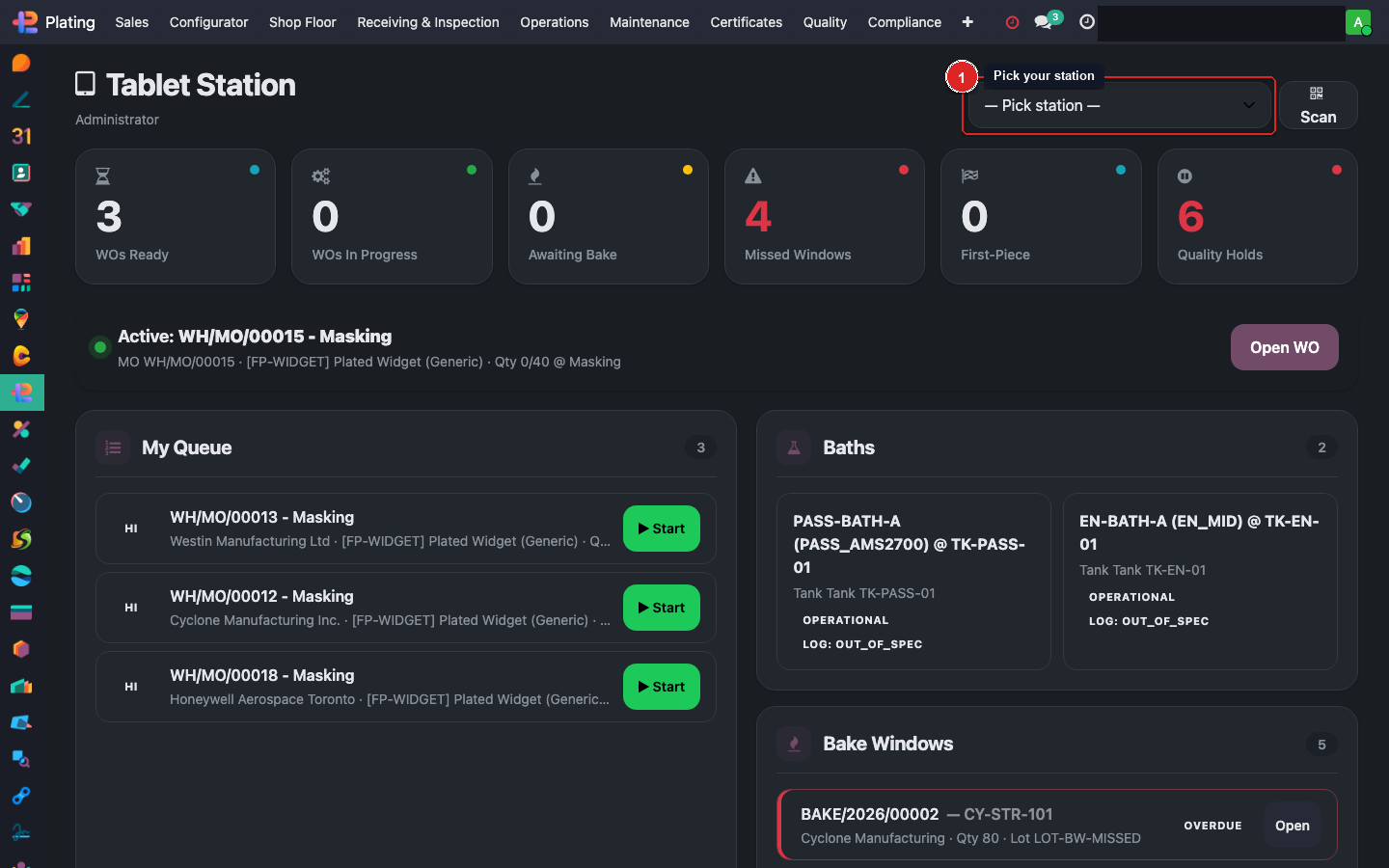
The Pick Station dropdown (top right) tells the tablet which physical station you're working at — Bake Oven, Inspection Kiosk, Masking, etc. The station persists between sessions, so you won't usually touch it after the first day. Your KPI tiles and My Queue filter to your station.
Step 2: Scan a batch
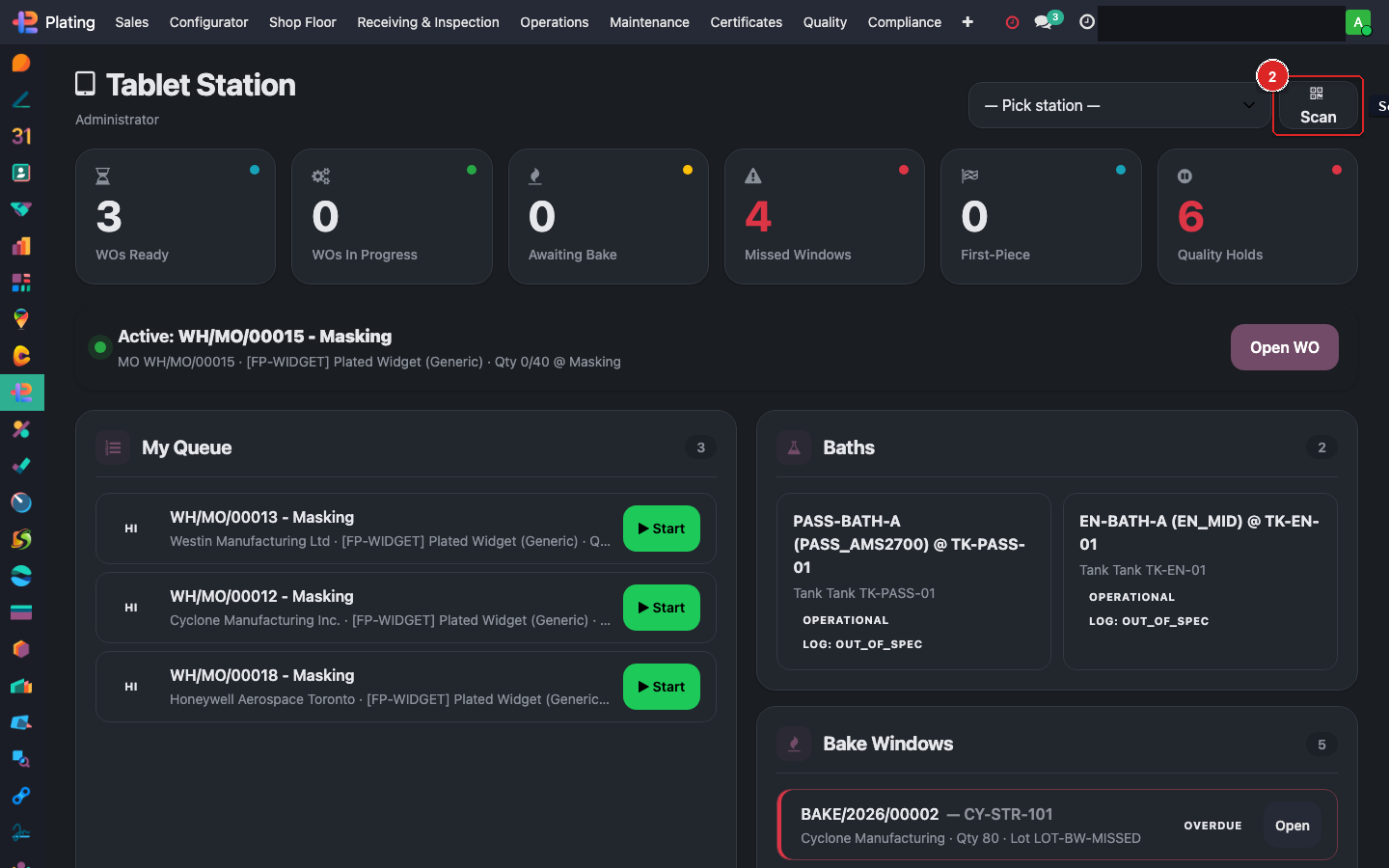
The Scan button is the fastest way to open a work order. Tap it, aim the shop's barcode gun at the QR sticker on a rack or batch, and the Tablet instantly jumps to that WO's step-by-step view — no dropdowns, no typing.
Step 3: WOs Ready
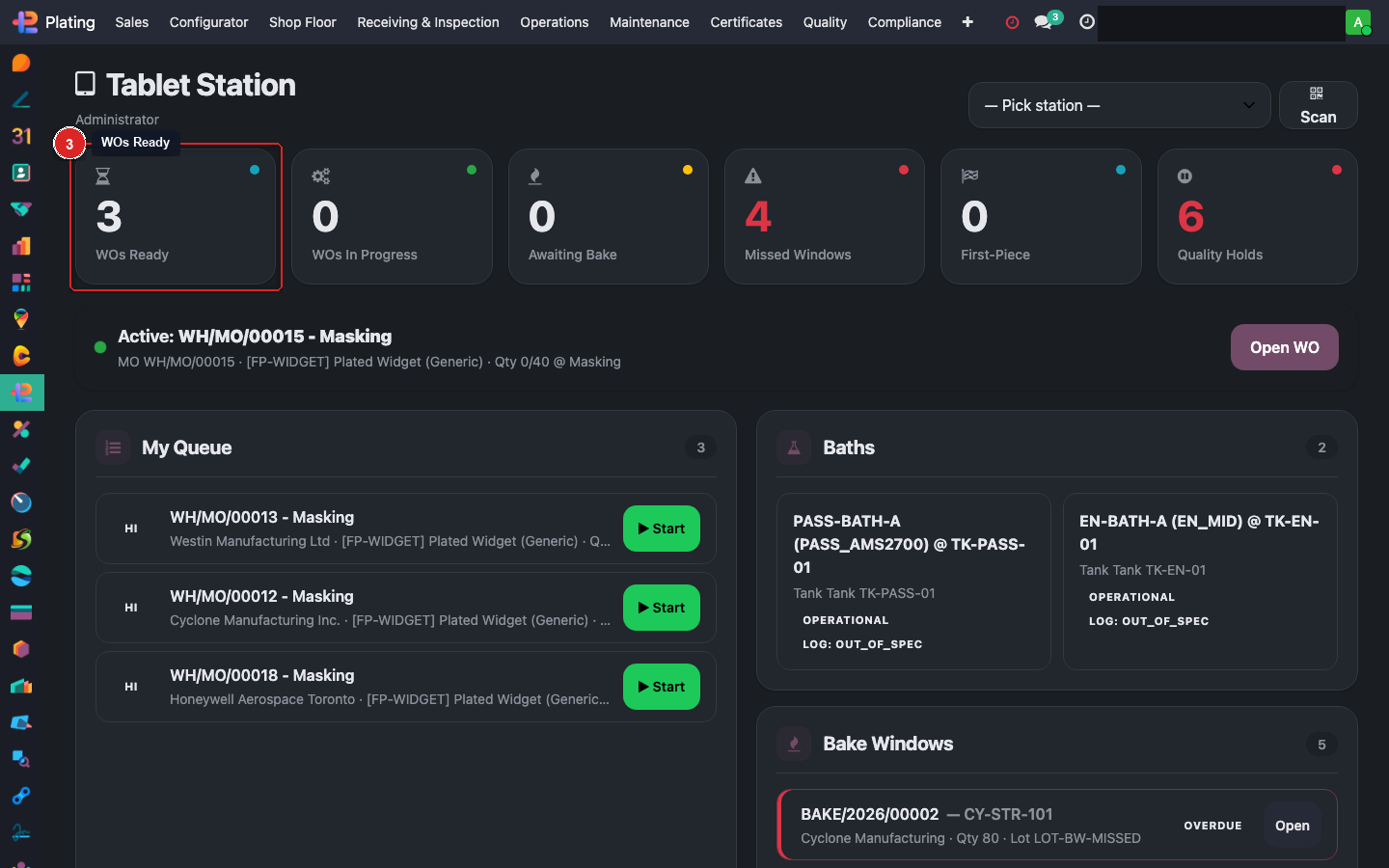
The first KPI tile shows work orders Ready to start at your station. A blue dot means idle-normal. If this number is non-zero, you have work to do — jump into My Queue or tap the tile to drill in.
Step 4: WOs In Progress
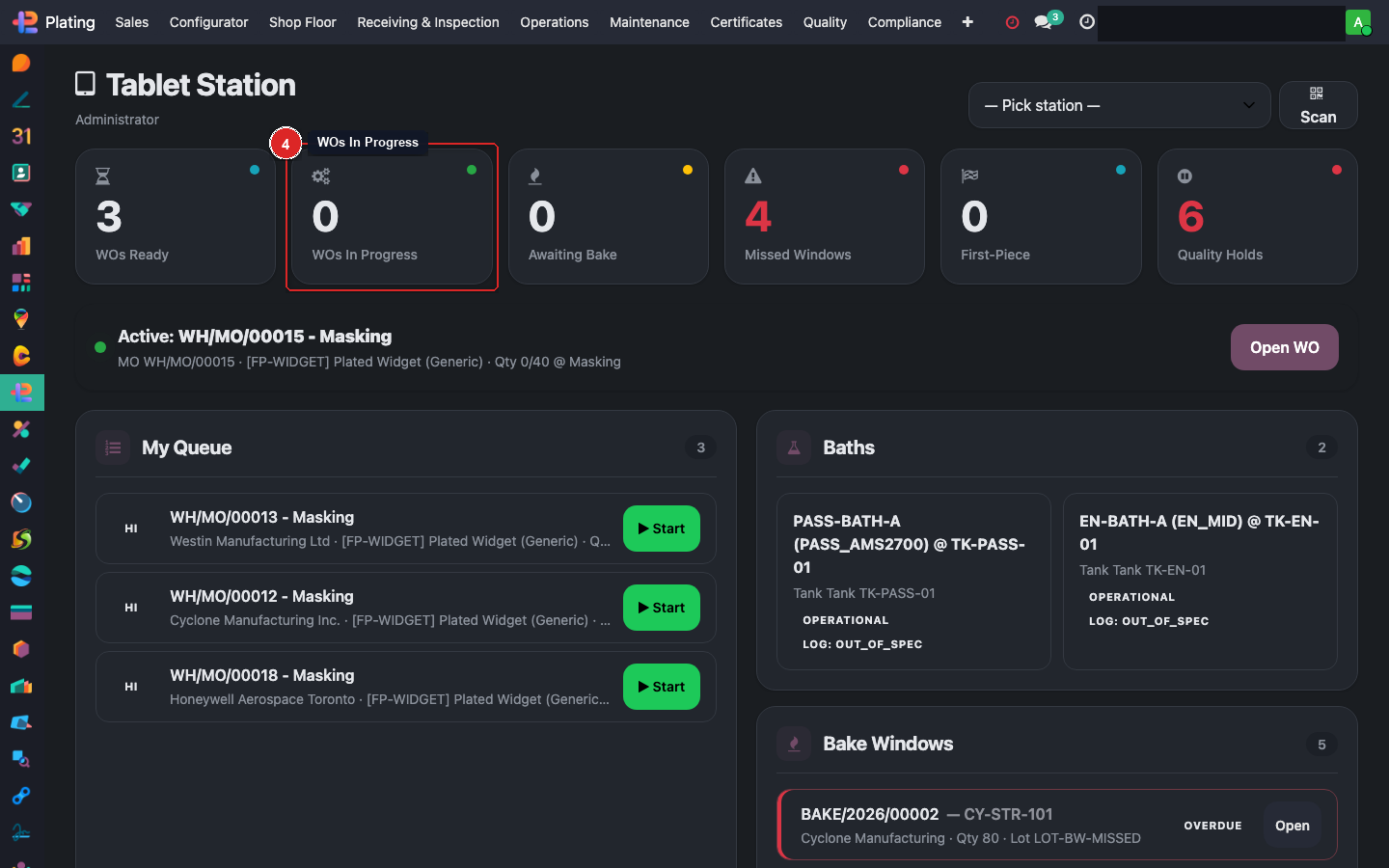
Work orders currently running (somebody clocked in). Green-dot normal. If you see a number higher than expected, a WO may be stuck in progress — check who's clocked in.
Step 5: Awaiting Bake
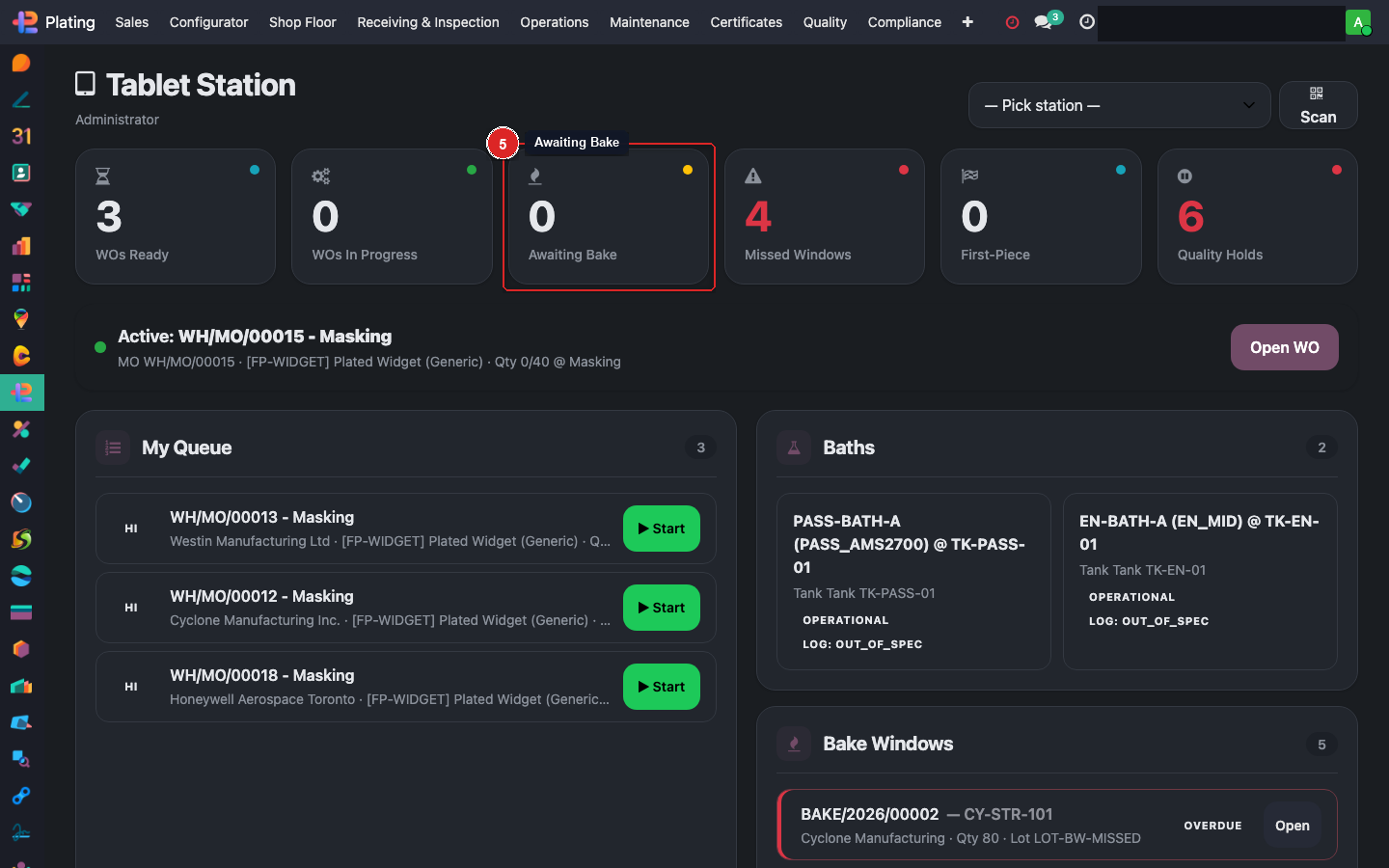
Batches that finished plating and are waiting for their 4-hour H2 embrittlement-relief bake to start. Yellow dot = running out of time. Red = already past ASTM B850 window — escalate.
Step 6: Missed Windows
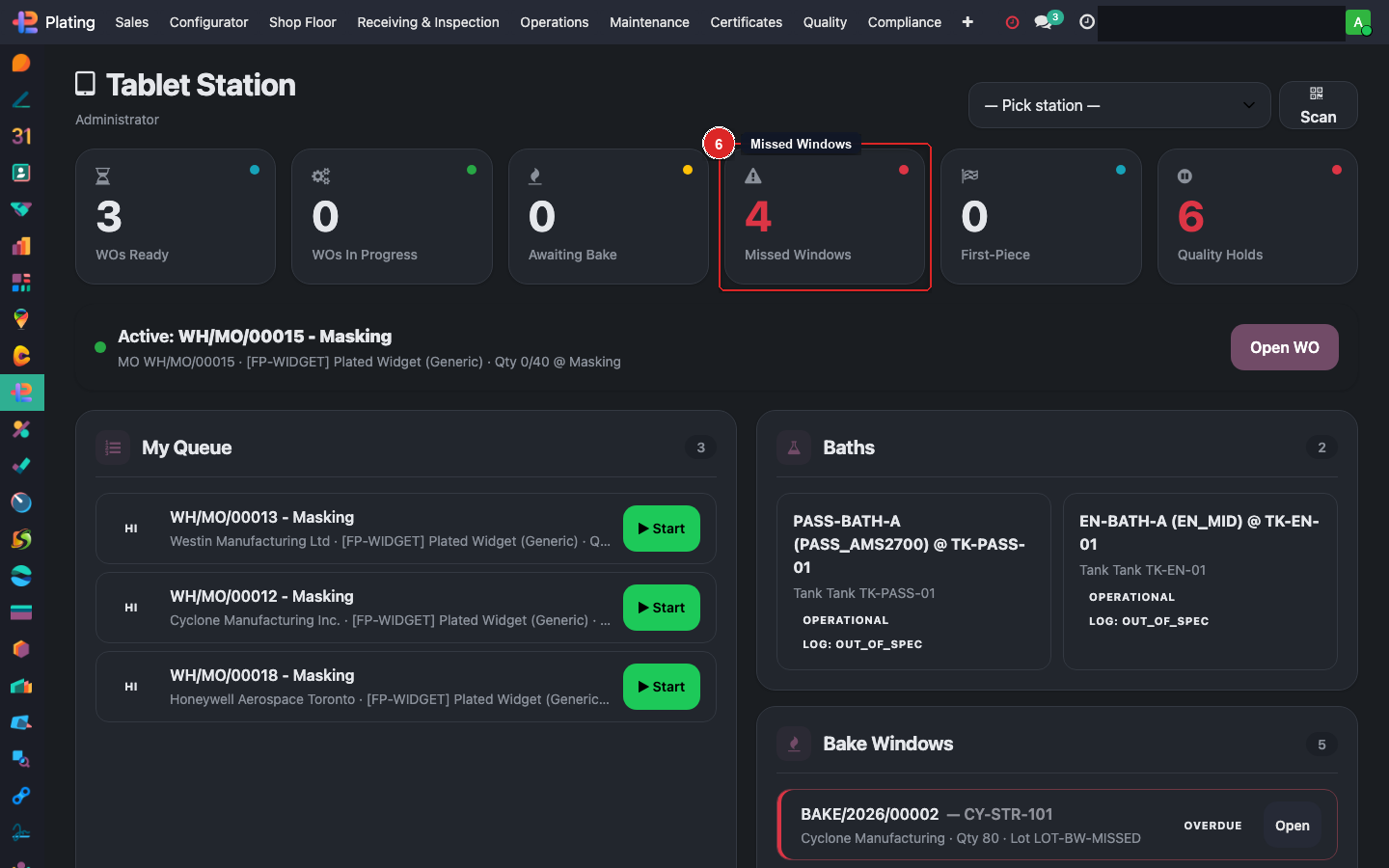
The scary one. Each number here is a bake cycle that missed its start-by time. Every missed window is a quality incident — a Quality Hold is auto-created, a CAPA is typically opened, and the batch needs a disposition (scrap / rework / accept with deviation). Page the shop manager.
Step 7: First-Piece
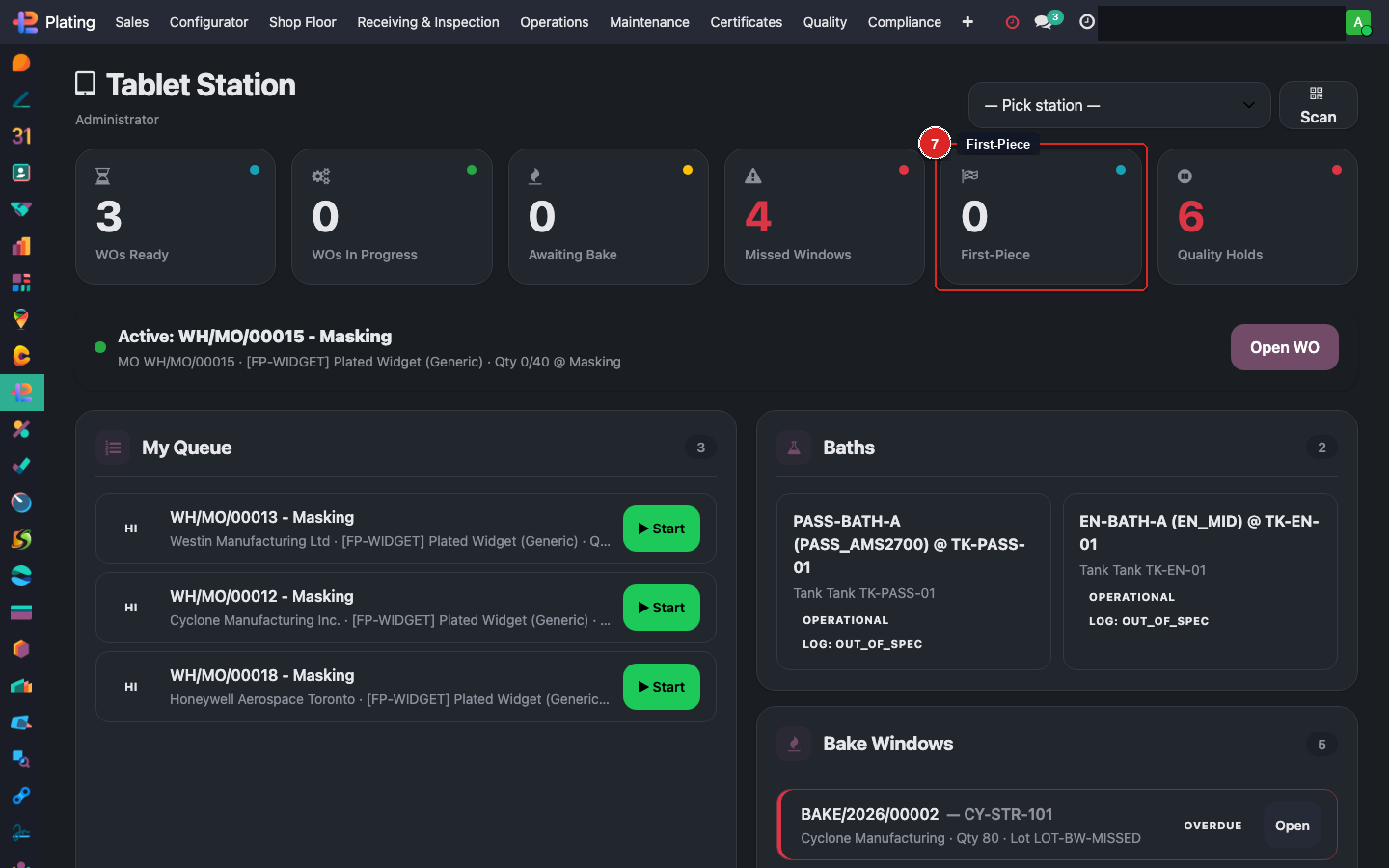
Work orders where Quality hasn't yet signed off the first piece. You cannot run the rest of the batch past this gate — a QA inspector must approve the first part before the remainder can proceed.
Step 8: Quality Holds
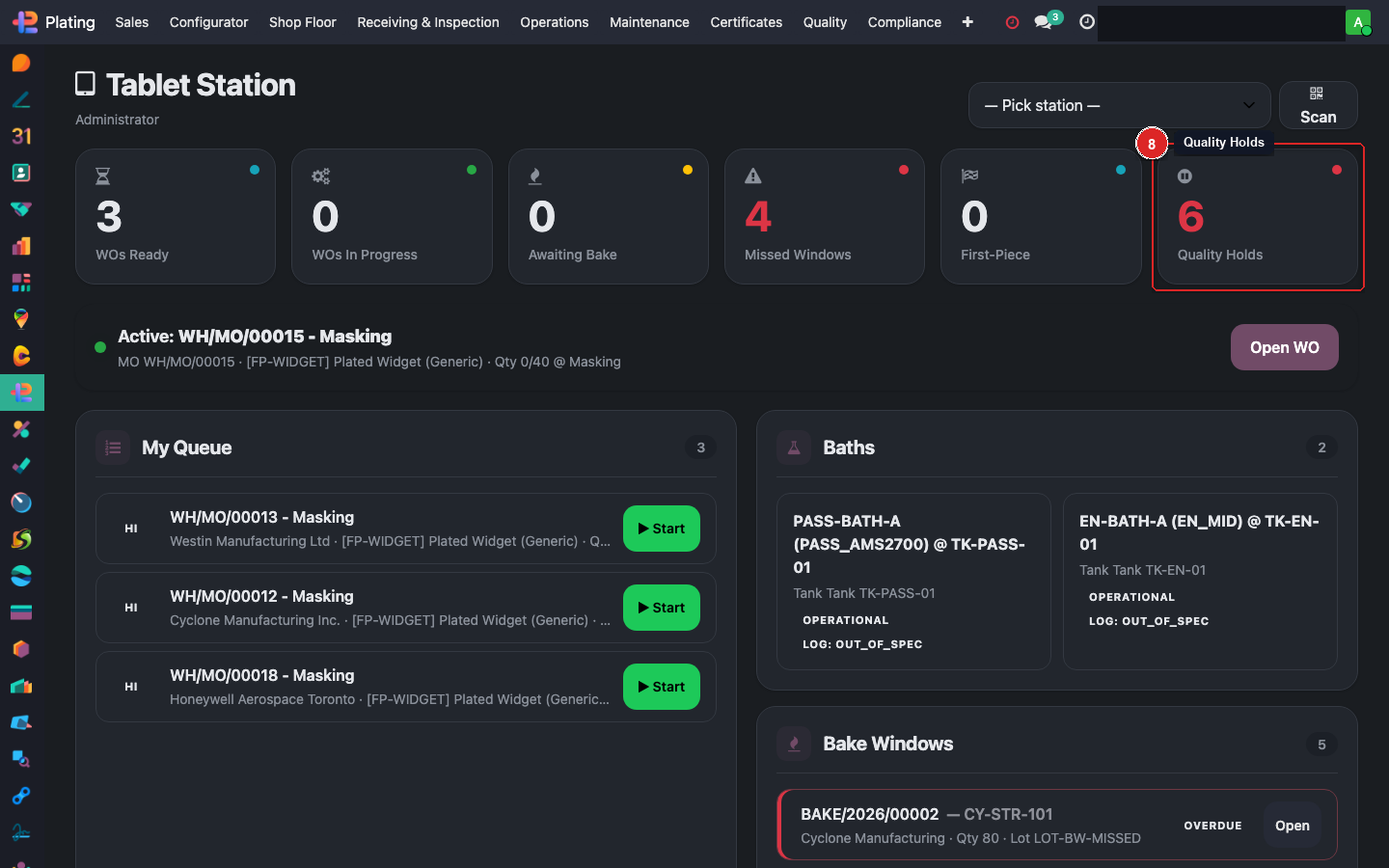
Batches blocked by QC from advancing. Red number means one of your queued WOs has been put on hold — something you were going to work on is now paused pending investigation. Don't try to work around it.
Step 9: Active WO banner — tap Open WO to resume
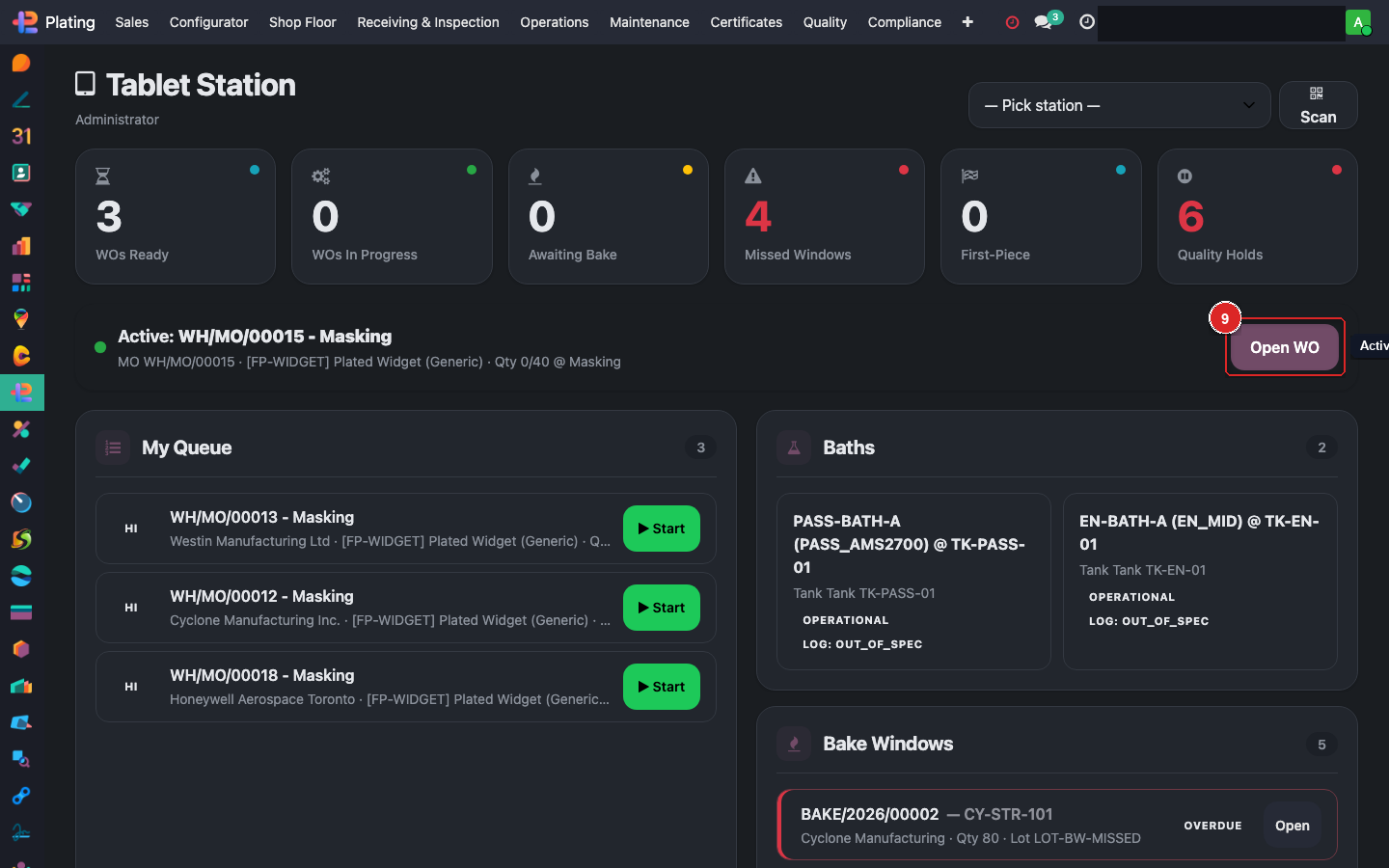
The highlighted bar shows the work order you currently have open. Tap Open WO to resume — you'll land on the step-by-step recipe view where you enter measurements, tick off each instruction, and complete the WO when done.
Step 10: My Queue — your next work
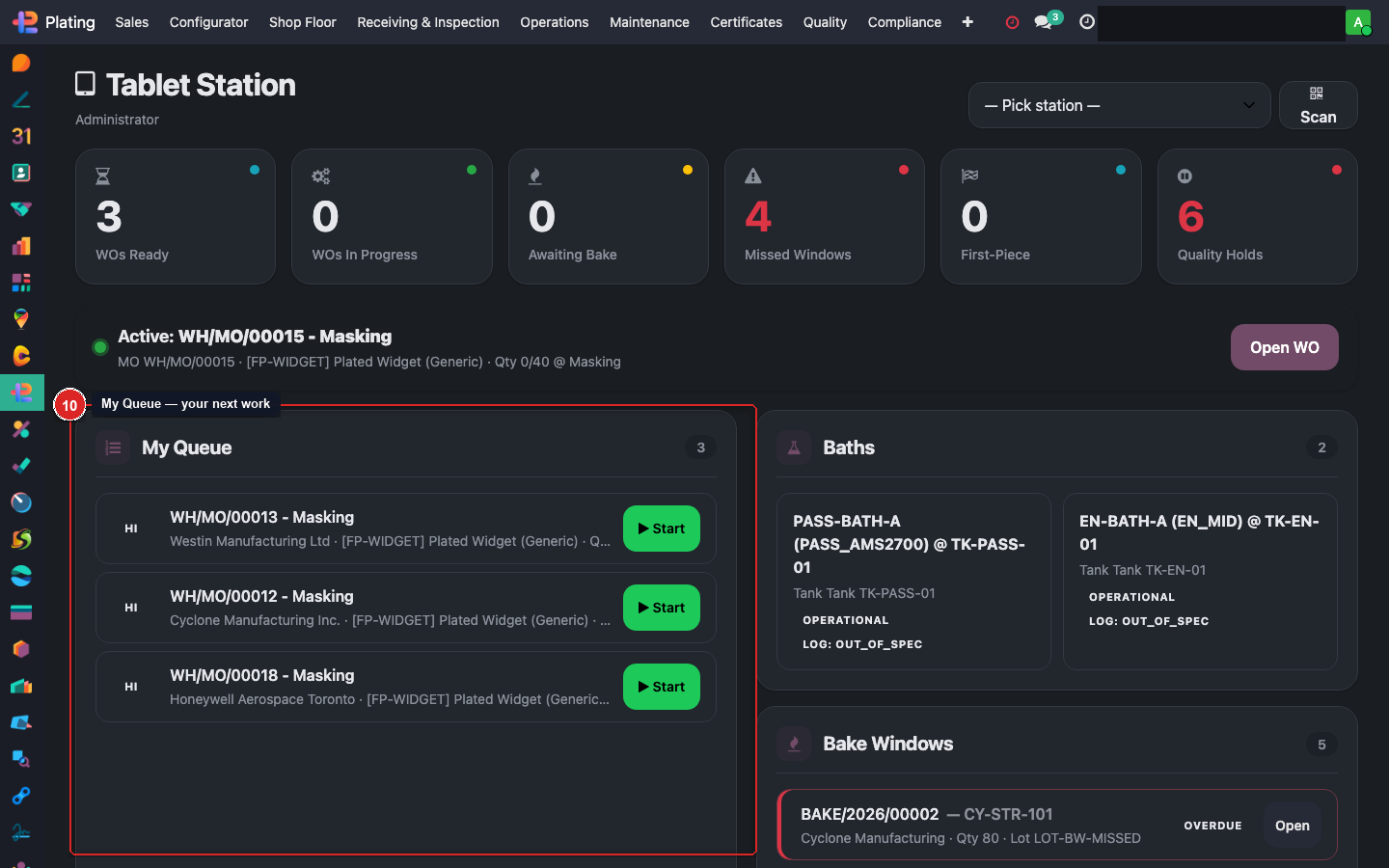
The My Queue panel lists the WOs assigned to you personally, next-up first. Each card shows the MO number, customer, part, and station. Tap the green Start button on a card to clock in and begin.
Step 11: Baths panel — know chemistry status before plating
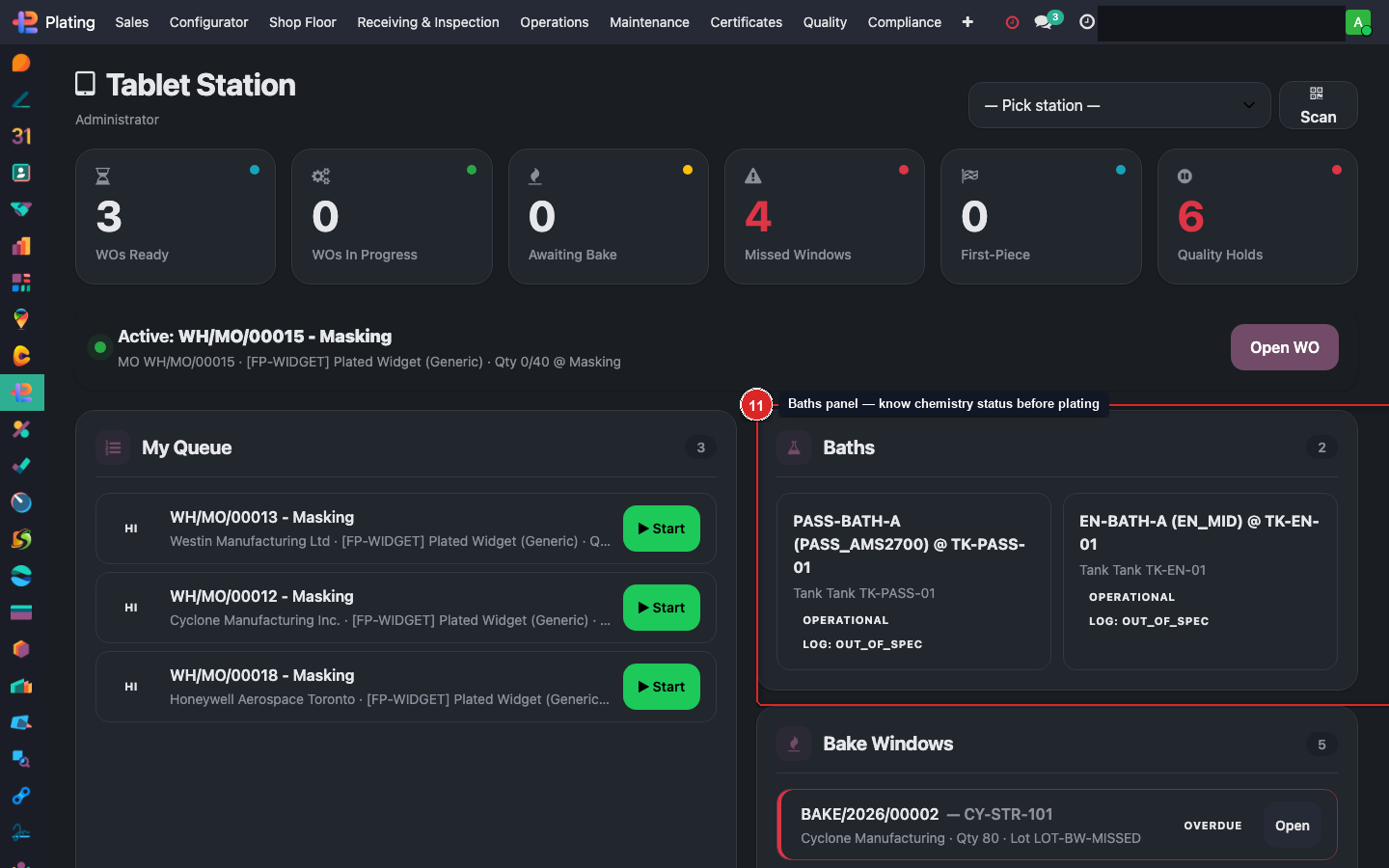
Before dropping parts in a tank, glance here. An Operational (green) bath is chemistry-pass. Out of Spec (red) means the last chemistry log failed — don't plate. Click any card to see the latest readings.
Step 12: Bake Windows — the 4-hour countdown
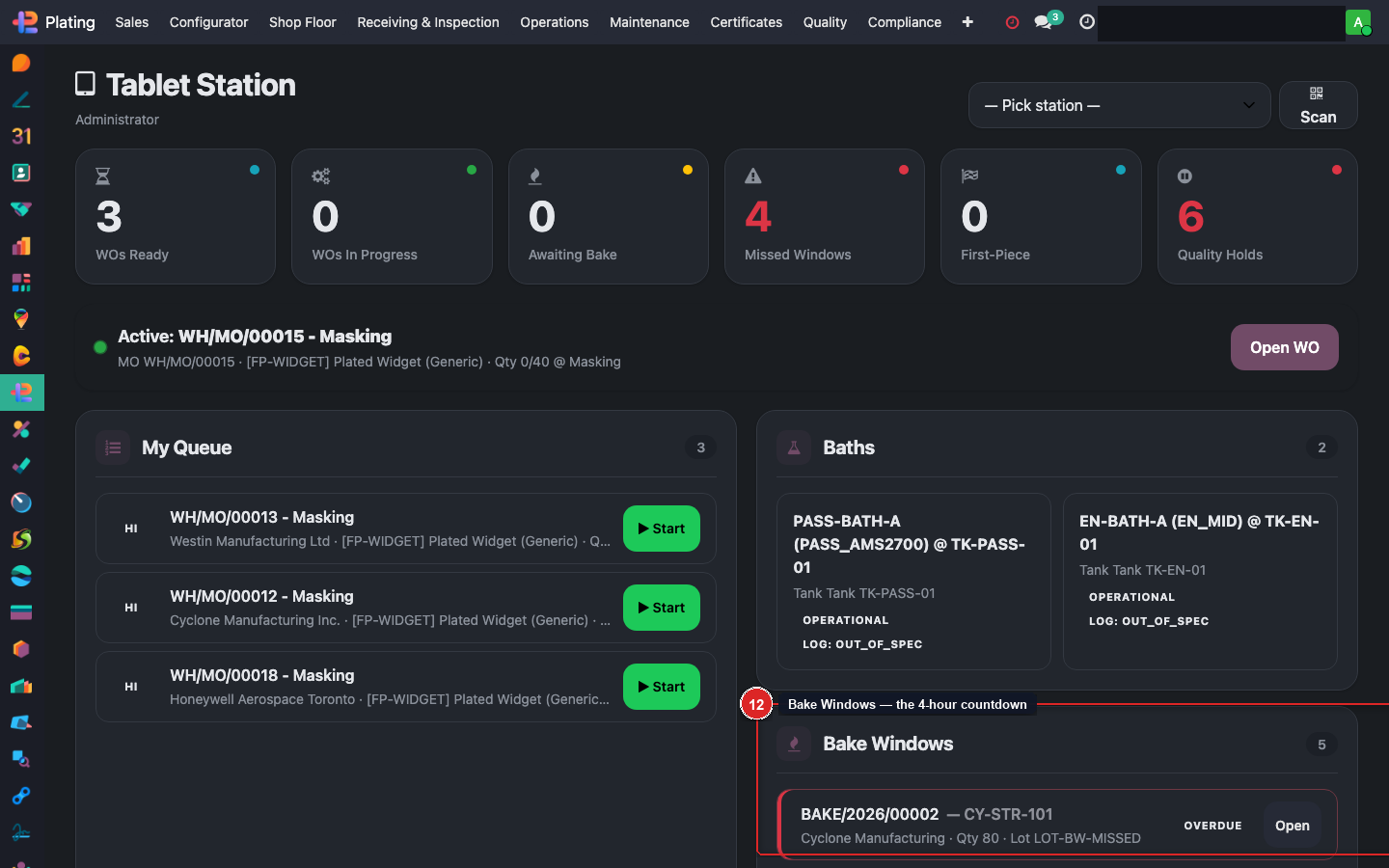
Live countdown for every batch currently waiting on or running its post-plate bake. Yellow = close to the 4-hour limit. Red OVERDUE = window missed. Tap Open on any card to see the batch's timer and start or end the bake.
What can go wrong
My queue is empty but I know I have work
Check your Pick Station dropdown — you may have the wrong station selected. It filters every KPI tile and the queue.
Scan button doesn't register
Barcode gun is out of range or the QR is unreadable. Fall back to typing the batch number into the search bar.
Awaiting Bake went red
ASTM B850 compliance hit. Flag the shop manager immediately — the batch is at risk of hydrogen embrittlement rejection.
I tapped Start and nothing happened
You may not have the certification for that recipe's work role. Check with your shop manager — operator certifications determine which WOs show the Start button.